Free Tool Inventory Template for Excel & Google Sheets
A ready-to-use tool inventory workbook for crews and workshops — a tool register that shows who has each tool and on which job site, a check-out log by crew and site, calibration tracking, and a dashboard. Works in Excel and Google Sheets.
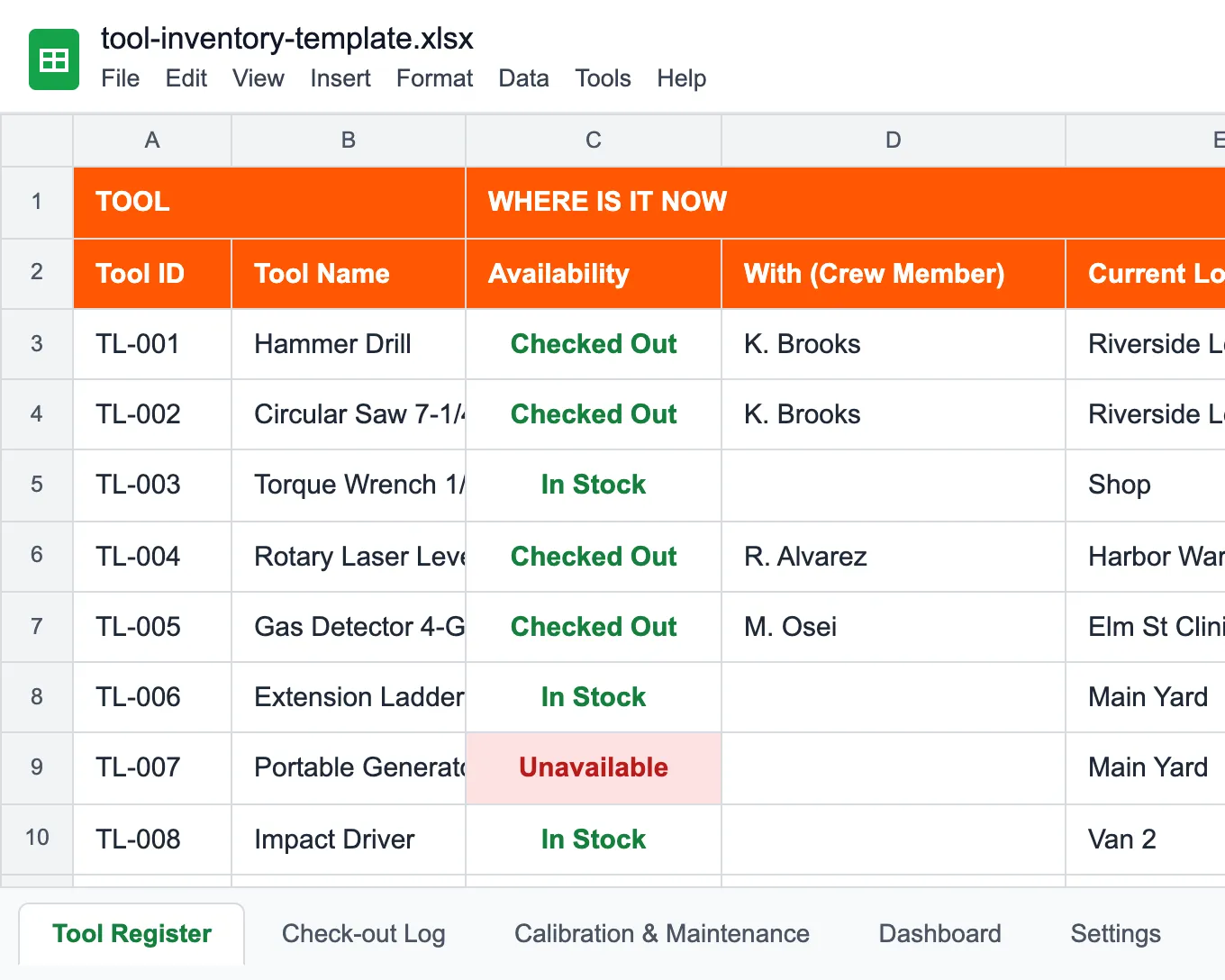
What is a tool inventory template?
A tool inventory template is a ready-made Excel or Google Sheets file for recording every hand and power tool your crew owns — what it is, who has it, which job site it's on, and when it's due for calibration or service. You get a working asset register, check-out log, calibration/maintenance log, and dashboard without building formulas from scratch.
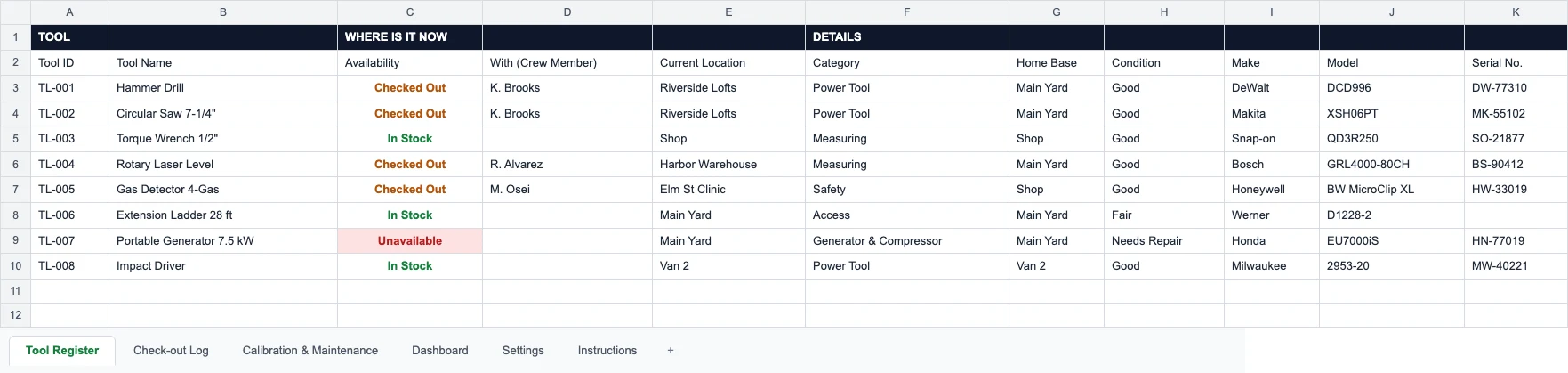
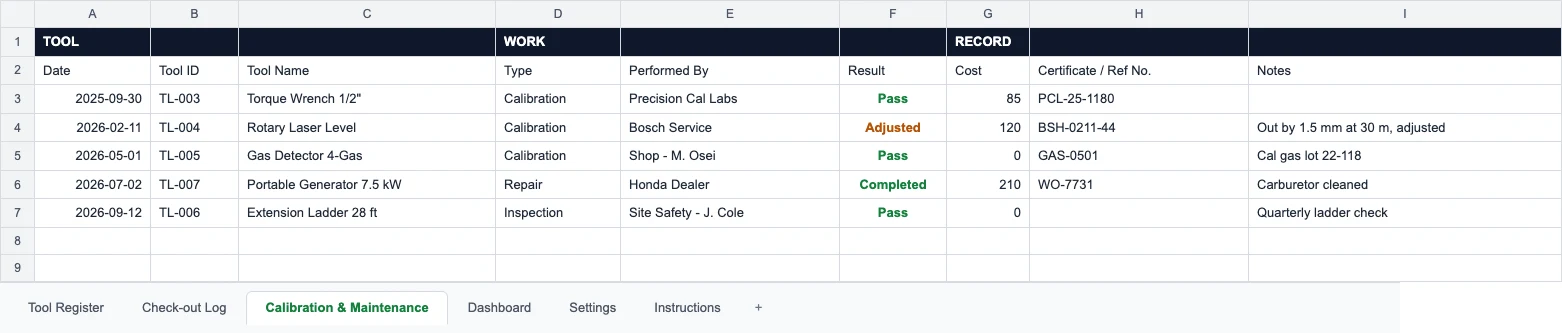
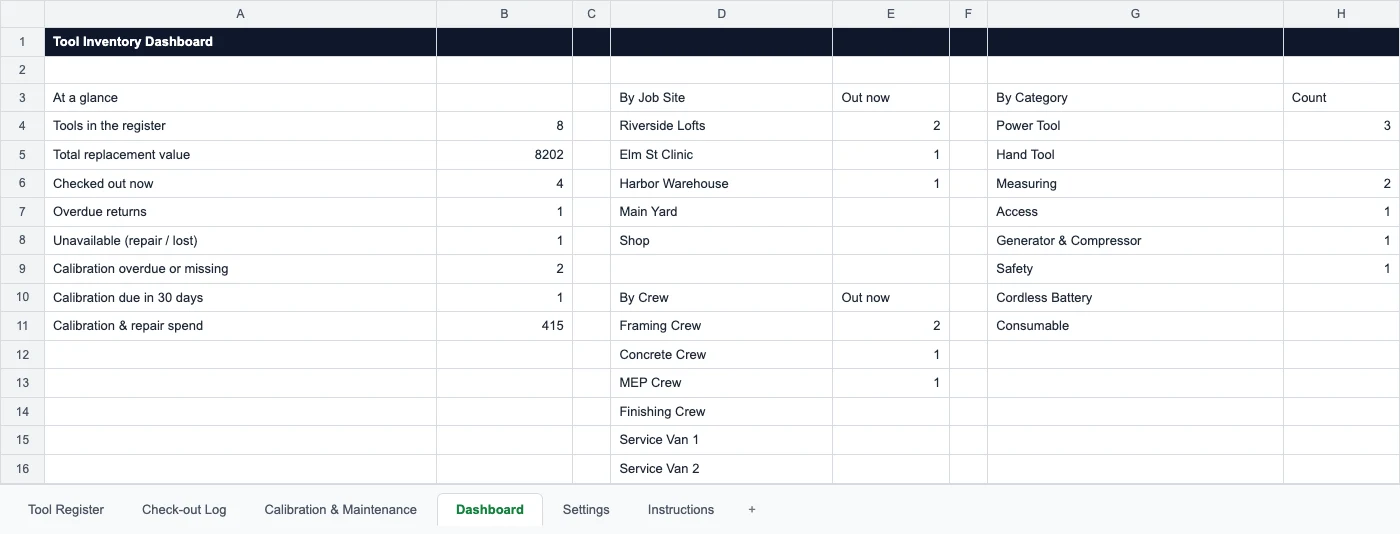
Use it to list each tool with its ID, category, assigned crew or owner, current job site, and condition; log check-outs and returns as tools move between people and sites; and let the dashboard show what's out, what's overdue, and what's due for calibration. The register and the log are connected: while a check-out is open, the tool's row shows Checked Out, the crew member holding it and the job site it went to, so nobody keeps two records in step by hand. Log a calibration and the register works out the next due date and marks the tool Due soon 30 days ahead. The same file opens in Excel (.xlsx) and Google Sheets. It is built for tools — drills, saws, generators, ladders, levels, torque wrenches, gas detectors, and the small stuff that quietly walks off a site. When you need the software version with mobile scanning, see construction tool tracking.
What's Inside the Template
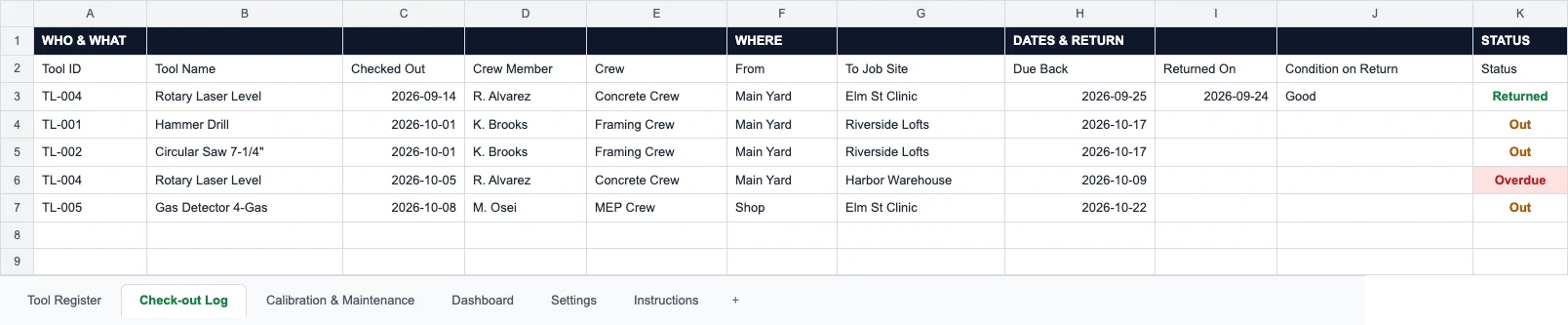
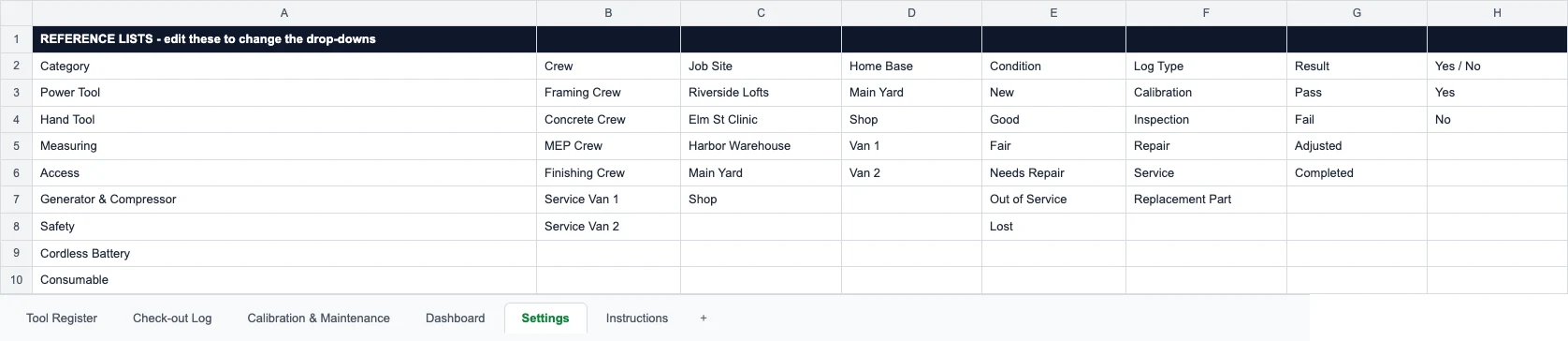
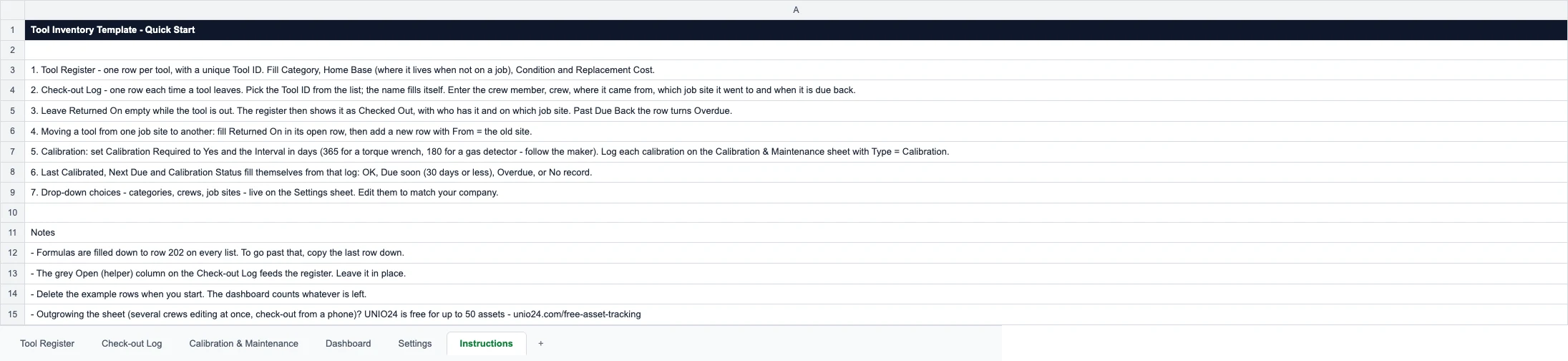
6 sheets with formulas and drop-downs filled down 200 rows — swipe through what comes in the download.
Who uses a tool inventory template
Built for crews up to 50 tools — set it up for your kit and start tracking today.
General contractors
Power tools and equipment across job sites — know which crew has what, and what came back.
Electricians, plumbers & HVAC techs
Track testers, meters, and specialty tools per van and per technician, with calibration dates.
Workshops & makerspaces
Shared tools that members borrow — a simple check-out log keeps everything findable.
Facilities maintenance
The maintenance crib: hand tools, ladders, and gear checked out for each work order.
Small equipment rental
Track what is out on hire, who has it, and when it is due back — before you need software.
Field service teams
Kit that travels with technicians — know what each person carries and what needs service.
Spreadsheet or UNIO24 — what fits your crew?
The template is a great start. Once tools move across sites and crews daily, a cloud platform pays off.
| Capability | Free Template | UNIO24 FreeRecommended for 50+ |
|---|---|---|
| Daily tracking | ||
| Tool limitTemplate handles unlimited but slows past hundreds. UNIO24 free tier covers 50 tools with unlimited users. | Partial | Yes |
| Team collaborationShared file = one editor at a time. UNIO24 = real-time editing, unlimited crew members. | Partial | Yes |
| Mobile accessNative iOS and Android apps to check tools in and out on site | No | Yes |
| Check-out on the job siteManual tab in the template. UNIO24 records check-outs from a phone with full history. | Partial | Yes |
| Maintenance & alerts | ||
| Calibration & service remindersNotifications before a calibration or service is due | No | Yes |
| Overdue / lost-tool alertsAutomatic notifications when a tool is overdue back | No | Yes |
| Data & reliability | ||
| BackupsTemplate relies on you remembering to save. UNIO24 backs up automatically every day. | Partial | Yes |
| Audit trailFull change history per tool — who took what, when | No | Yes |
| Full support | 0/ 8 | 8/ 8 |
Frequently Asked Questions
Everything you need to know about the free tool inventory template
Is the tool inventory template really free?
Yes — no hidden costs, no subscription, no card required. Fill out the form and the .xlsx file downloads right away. It opens in Excel, and in Google Sheets through File → Import.
How do I track tools across multiple job sites and crews?
Use the Check-out Log: each row records the crew member, the crew, where the tool came from and the job site it went to. To move a tool between sites, close its open row with a return date and add a new row from the old site. The register then shows who holds each tool and where, and the dashboard counts what is out on each site and with each crew — so a missing impact driver is a lookup, not a Slack thread.
How is a tool inventory different from an equipment inventory?
A tool inventory leans toward smaller, portable, high-turnover items — drills, saws, testers, ladders — that move between people and job sites daily, so the check-out log and calibration dates matter most. An equipment inventory leans toward larger, fixed or semi-fixed machines where a service schedule and warranty tracking matter more. They are separate workbooks: this one connects check-outs to the register and tracks calibration; the equipment one tracks purchase value, loans and depreciation.
When do I outgrow a tool tracking spreadsheet?
Usually around 50 tools, or the moment two people need to update the log at once, or when tools move between sites faster than anyone updates the file. Past that you feel the missing pieces most: no mobile check-out on site, no calibration reminders, no reliable record of who lost what. That is when crews move to a cloud tool.
Go deeper on tool tracking
While you set up the template, see how crews keep tools accounted for at scale.

Asset Tagging Best Practices: A Practitioner's Guide
Label types, placement, and numbering schemes for tools that take a beating on site.
Read more: Asset Tagging Best Practices: A Practitioner's Guide
How to Build an Equipment Check-Out System in Spreadsheets
Turn the check-out log into a real sign-out system — formulas and overdue flags.
Read more: How to Build an Equipment Check-Out System in Spreadsheets
How to Choose the Right Asset Tracking System
Cloud vs on-premise, must-have features, and the costly mistakes teams make when picking software.
Read more: How to Choose the Right Asset Tracking System