Your scanner can't read the label. Again. Here's how to fix it - and make sure it doesn't keep happening.
You point your phone at the QR code on a piece of equipment. Nothing happens. You tilt the phone, move closer, squint at the label - it looks... kind of smudgy. You try again. Five times. Eventually, you give up and type the asset ID manually.
Two minutes wasted. On one asset.
Now multiply that by 50 assets during an audit day. Or by the 15 items your warehouse team scans every hour as part of an equipment checkout system. Suddenly, a "minor label issue" is eating hours of productive time every week - and introducing manual entry errors that quietly corrupt your data.
Blurry, faded, or damaged barcodes and QR codes aren't just annoying. They're a systematic breakdown in your tracking process. And the worst part? Most of these problems are completely preventable.
Let's fix that.
QR code and barcode repair tool
Upload a photo of the label that won't scan.
Nothing decoded yet.
Why Blurry Codes Are a Bigger Problem Than You Think
It's tempting to shrug off a bad scan. "Just type it in manually." But here's what actually happens when labels start failing across your organization:
Time loss adds up fast. If just 10% of your labels are hard to scan, and each failed scan costs 2 extra minutes of manual lookup and entry, a team scanning 200 items per day loses over 3 hours a week. That's 150+ hours a year - on typing.
Manual entry means errors. People transpose digits. They misread characters. They skip fields. One wrong number and you've assigned maintenance history to the wrong forklift or shipped the wrong part. Good luck catching that during your next asset audit.
Unreadable labels create invisible assets. If nobody can scan it, nobody updates it. Over time, these assets quietly drift off your radar and become ghost assets - things that exist on paper but can't be found, verified, or properly managed.
One operations manager told me they discovered 43 "missing" assets during an audit. Turned out, 28 of them were sitting exactly where they should be - they just had labels too faded to scan, so people had been skipping them for months.
The 5 Most Common Causes of Blurry Barcodes and QR Codes
Before you can fix it, you need to know why it's happening. In my experience, it almost always comes down to one of these five things.
Cause 1: Low Print Resolution
This is the number one reason new labels won't scan. The printer's DPI (dots per inch) setting is too low, and the tiny modules that make up a QR code or the thin lines of a barcode come out fuzzy.
Here's the simple breakdown:
- 150 DPI: Barely acceptable for large QR codes. Forget about small labels or 1D barcodes.
- 200 DPI: Minimum for most barcode applications. Works for QR codes 3 cm and larger.
- 300 DPI: The sweet spot. Clean, sharp codes at any practical size. This is what you should aim for.
- 600 DPI: Overkill for most use cases, but great for very small labels or high-density codes.
Rule of thumb: If you're printing QR code labels for asset tracking, 300 DPI is the standard. Don't go lower unless you have a specific reason.
Cause 2: Wrong Label Material for the Environment
This is the sneaky one. Your labels look perfect on day one. Three months later, they're faded, peeling, or smeared beyond recognition.
The culprit? Paper labels in environments that destroy paper.
| Environment | Problem | Recommended Material |
|---|---|---|
| Outdoors / direct sunlight | UV fading, rain damage | Polyester (PET) with UV-resistant laminate |
| Warehouse / factory floor | Abrasion, dust, chemical splashes | Polypropylene or polyester |
| Cold storage / freezers | Adhesive failure, condensation | Specialized freezer-grade labels |
| High-heat equipment | Adhesive melting, print fading | Ceramic or metal asset tags |
| Office / indoor | Minimal wear | Standard paper or synthetic paper |
| Vehicles / mobile assets | Vibration, weather, fuel exposure | Polyester with strong adhesive + laminate |
The mistake I see most often: Companies buy the cheapest paper labels, stick them on everything, and then wonder why half their codes are unreadable after six months. The label material should match the environment. Period.
Cause 3: Poor Contrast or Color Choices
Scanners - whether they're dedicated devices or phone cameras - read barcodes by detecting the contrast between dark and light areas. Reduce that contrast and you reduce readability.
Common mistakes:
- Printing dark gray codes on a light gray background (looks fine to the eye, terrible for scanners)
- Using colored QR codes (blue, red, green) - they scan less reliably than black
- Printing on a dark or transparent surface without a white backing
- Logos or images overlapping the code's quiet zone
The quiet zone matters. Every barcode and QR code needs a clear margin of empty space around it - typically at least 4 modules wide for QR codes. Print the code right up to the edge of the label or crowd it next to text, and scanners will struggle.
Best practice: Black code on white background. Always. It's boring, but it works every time.
Cause 4: Physical Wear and Damage
Labels live in the real world. They get scratched by tools, rubbed by hands, blasted by UV light, splashed by chemicals, and covered in dust and grime. Even the best label material has a lifespan.
What wears labels out fastest:
- Abrasion - equipment that gets handled, stacked, or stored against rough surfaces
- UV exposure - sunlight bleaches ink and yellows adhesives within weeks
- Chemical contact — solvents, oils, cleaning products can dissolve certain inks
- Temperature cycling — repeated hot/cold shifts cause label materials to crack and peel
How long do labels last?
- Plain paper labels: 3-6 months in mild conditions, weeks outdoors
- Laminated paper: 6-12 months
- Polyester/synthetic labels: 2-5 years
- Metal or ceramic tags: 10+ years
If your labels are failing faster than expected, it's a material mismatch — not bad luck.
Cause 5: The Code Is Too Small
A QR code that looks sharp and clear on your screen can become an unreadable blob when printed at 1×1 cm. The individual modules (the tiny squares) get so small that printer limitations, camera resolution, and any slight damage all conspire against you.
Minimum recommended sizes for smartphone scanning:
| Code Type | Minimum Size | Comfortable Scan Distance |
|---|---|---|
| QR Code | 2×2 cm (0.8×0.8 in) | 15-20 cm (6-8 in) |
| QR Code (high data density) | 3×3 cm (1.2×1.2 in) | 20-30 cm (8-12 in) |
| 1D Barcode (Code 128) | 3 cm wide, 1 cm tall | 10-20 cm (4-8 in) |
| 1D Barcode (EAN/UPC) | 3.7 cm wide, 2.5 cm tall | 10-25 cm (4-10 in) |
Tip: If your team scans from more than arm's length away — like labels on high shelves or large machinery — you need bigger codes. Double the distance, double the size.
Need codes to test these sizes against? The Code 128 barcode generator renders one at any scale, and the bulk barcode generator prints a full Avery sheet you can measure on real label stock.
Quick Fixes: What to Do Right Now
Your labels are already out there and some of them won't scan. Here's what to do today, starting with the easiest:
Fix 1: Clean the Label
I know — obvious. But you'd be surprised how often a quick wipe with a damp cloth solves the problem. Dust, grease, and fingerprints are the #1 cause of "suddenly" unreadable codes. Especially in warehouses, workshops, and outdoor environments.
Fix 2: Try Different Lighting
Glare kills scans. If you're scanning a glossy laminated label, a direct overhead light or sunlight can create a white reflection right across the code. Tilt the label, angle your phone, or shade the code with your hand. Simple, effective.
Fix 3: Use a Different Scanner App
Not all camera-based scanners are created equal. Some handle low contrast or partial damage better than others. If your default camera app struggles, try a dedicated barcode scanning app — they often have better image processing for damaged codes.
Fix 4: Reprint and Replace
If the code is genuinely damaged — faded, torn, scratched through — no amount of cleaning or angle adjustments will save it. Time to reprint.
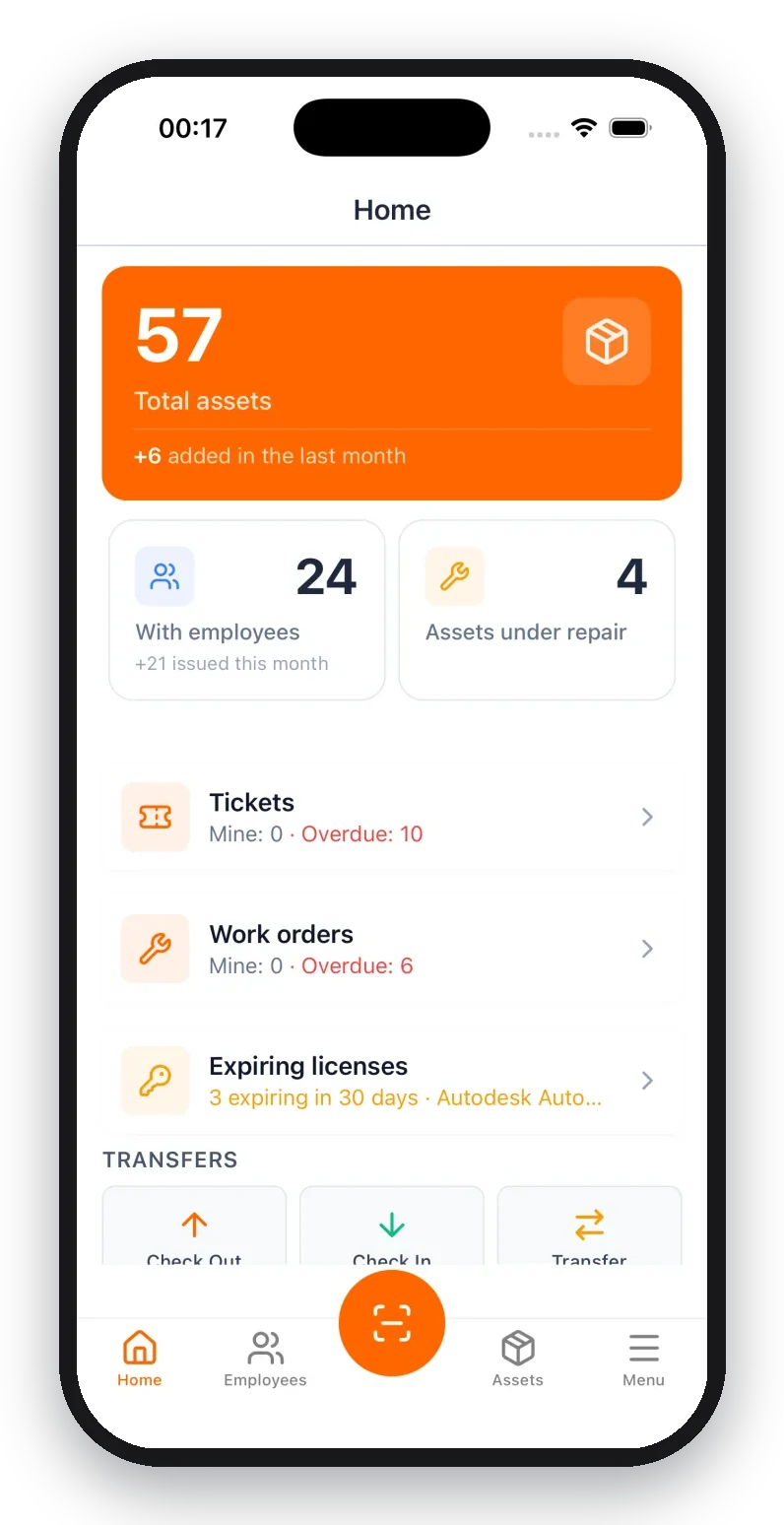
With a platform like UNIO24, you can regenerate any asset's QR code in seconds and print a fresh label. The key is making replacement fast and painless, so people actually do it instead of just skipping that asset.
Fix 5: Always Include a Human-Readable ID
This is your safety net. Every label should have the asset ID or serial number printed in plain text below or beside the code. If the code fails, the team can still look up the asset manually without guessing.
This isn't a fix for the code itself — it's a fix for the process. And it should be standard on every label you print.
How to Print Labels That Actually Last
If you're setting up labels for the first time — or replacing a failed batch — here's how to get it right.
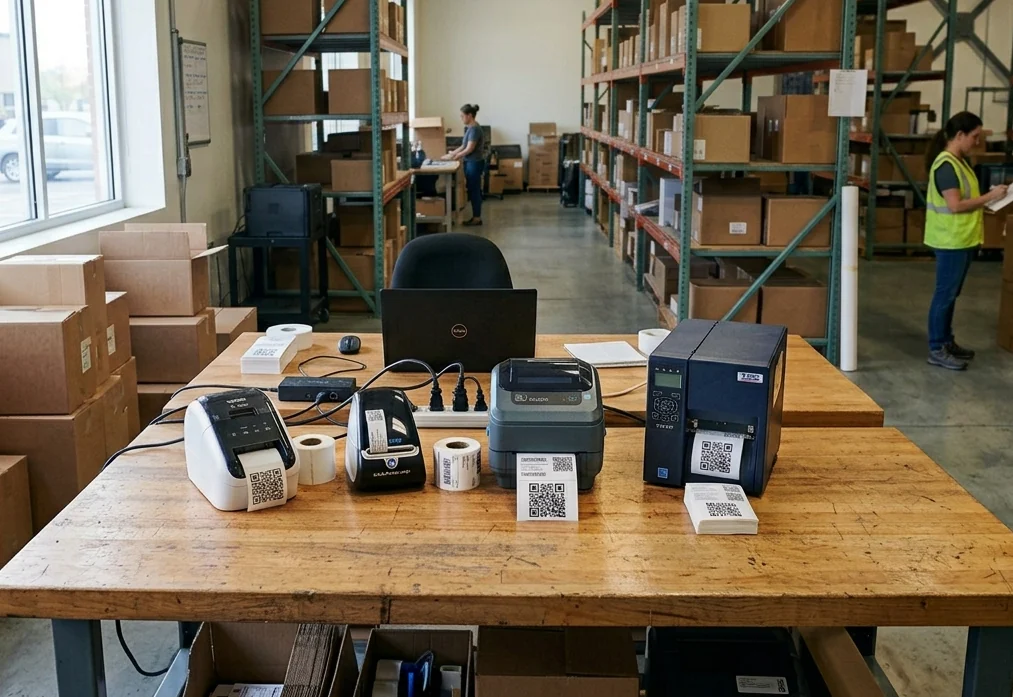
Choose the Right Printer
- Thermal transfer for anything that has to last — the ribbon-based print resists scratching, moisture, and UV far better than the alternatives.
- Direct thermal for short-lived, indoor labels only — the same coating that prints the code keeps reacting to heat and light afterward, so it fades within weeks outdoors or near heat.
- Laser printer is an acceptable low-volume option in an office, printed onto polyester label sheets rather than plain paper.
Choosing which printer to buy is a different question from fixing a label that's already failed to scan: the full comparison, with specific models and real prices, lives in How to Choose a Printer for QR Code and Barcode Labels.
Get Your Print Settings Right
- DPI: Set to 300 or higher. Check your printer's default — some ship at 200 DPI.
- Print speed (thermal printers): Slower = sharper. If codes come out fuzzy, reduce print speed by 20-30%.
- Darkness/heat setting (thermal printers): Too light = faded codes. Too dark = bleeding ink. Test a few labels and adjust.
- Scaling: Print at exactly 100%. Do NOT let your software auto-fit or resize the code.
Choose the Right Error Correction Level for QR Codes
QR codes have four levels of built-in error correction that let them remain scannable even when partially damaged:
| Level | Error Correction | Data Overhead | When to Use |
|---|---|---|---|
| L (Low) | ~7% damage tolerance | Smallest code | Clean, protected environments |
| M (Medium) | ~15% damage tolerance | Moderate | General office use (default in most generators) |
| Q (Quartile) | ~25% damage tolerance | Larger code | Warehouses, factories |
| H (High) | ~30% damage tolerance | Largest code | Outdoor, harsh environments, codes with logos |
For asset tagging: Use level Q or H. Yes, the code will be slightly larger, but it'll survive the real world much better. Level L is fine for a website URL on a business card — it's not fine for a label on a forklift.
Prevention: How to Make Sure Your Codes Stay Readable
Fixing labels after they fail is reactive. Here's how to be proactive.
Laminate Everything That's Not Indoors
A simple laminate overlay adds months or years to a label's life. It protects against scratching, moisture, UV, and chemical contact. For outdoor or industrial assets, consider labels with pre-applied laminate — they're more consistent than hand-applied film.
Place Labels Where They Won't Get Destroyed
Obvious? You'd think so. Yet I've seen labels stuck on:
- The bottom of equipment that gets dragged across concrete
- Curved surfaces where the label buckles and cracks
- Right next to exhaust vents that blast them with heat
- Contact points where items rub together during storage
Best placement: Flat surface, protected from abrasion, visible without moving the asset, away from heat sources. Label the same spot on every asset of the same type — consistency makes scanning faster.
Add Label Checks to Your Regular Audits
During your asset audit, have the team flag any labels that are hard to scan. Don't just note "scanned successfully" — note "scanned on first attempt." Labels that take three tries today will fail completely next month.
Consider NFC as a Backup for Critical Assets
NFC tags don't care about visual damage. They work through dirt, paint, and even thin metal covers. For your most critical or hardest-to-label assets, adding an NFC tag alongside the QR code gives you a bulletproof backup.
Check out our comparison of QR Code vs NFC vs RFID to see which technology fits your use case.
The Pre-Print Checklist
Before you print a batch of labels, run through this:
- Resolution: Is the printer set to 300 DPI or higher?
- Material: Does the label material match the environment where it'll live?
- Size: Is the QR code at least 2×2 cm? Bigger if scanning from distance?
- Contrast: Black on white? No colored backgrounds or overlapping graphics?
- Error correction: Level Q or H for industrial use?
- Human-readable ID: Is the asset number printed in plain text alongside the code?
- Test scan: Did you scan a sample label from the batch before printing 500 of them?
If you answer "yes" to all seven, your labels will work. If you skip any of these, you're setting up a future headache.
QR Code vs Barcode: Which Is More Resilient?
If you're still using traditional 1D barcodes (the striped kind), it's worth knowing: they're fundamentally more fragile than QR codes.
1D barcodes encode data in the widths of vertical lines. A single horizontal scratch across those lines can make the entire code unreadable. There's no error correction — what you see is what you get.
QR codes store data in a two-dimensional grid of squares and include built-in error correction. Even with up to 30% of the code damaged (at level H), a scanner can still reconstruct the full data. They also hold more information in less space.
For asset tracking, the choice is clear: QR codes are more durable, more data-dense, and easier to scan with smartphones. If you're still running 1D barcodes on your assets, consider migrating. Your team will thank you.
When to Consider Alternatives to Printed Labels
Sometimes, no printed label will survive the conditions your assets face. When that happens, look beyond paper and synthetic labels:
NFC tags are completely immune to visual damage — scratches, fading, dirt, and UV don't affect them because they're read via radio frequency, not optically. They can be embedded inside protective housings or even molded into the asset itself. Read more about NFC tagging.
Laser engraving or etching puts the code directly into the material of the asset — metal, plastic, or wood. No label to peel off or fade. Ideal for assets with 10+ year lifespans in harsh environments. The trade-off: you need specialized equipment, and modifying the code later means re-engraving.
Hybrid approach: QR + NFC on the same tag. The QR code handles quick visual scans in normal conditions. The NFC tag takes over when the QR code is damaged, dirty, or in low-light conditions. This dual-tag approach is becoming increasingly popular for high-value equipment and critical infrastructure.
Frequently Asked Questions
Can you repair or restore a damaged QR code?
Not the printed image itself — no tool sharpens a blurry or scratched code back to life. The practical repair is decode-and-regenerate: read what's left in the print, then reprint a clean code with the same value. The free repair tool at the top of this page automates exactly that: it runs contrast and threshold passes over your photo, decodes the value, and rebuilds a printable code. QR codes also carry built-in error correction that recovers up to about 30 percent of a damaged code, so a scuffed or torn code frequently still reads. Because the code only points to an asset ID or URL, reprinting loses nothing — the data lives in your system, not in the ink.
Is there an app that fixes a blurry or low-resolution QR code?
No app reliably turns a genuinely blurry, low-resolution code into a scannable one — the detail simply is not there to recover. What helps at the margin is stronger image processing: the repair tool on this page applies contrast stretching, thresholding, and upscaling before decoding, which reads many codes a phone camera gives up on. If those passes all fail, the code is past saving and should be reprinted at higher resolution and a larger size.
Can you scan a QR code from a blurry photo or screenshot?
Sometimes. Upload the photo or screenshot to the repair tool on this page — it boosts contrast automatically and decodes if the resolution and error correction allow. Cropping the image tightly to the code before uploading improves the odds further. But a photo that is out of focus or shot at a steep angle usually will not decode, for the same reason your scanner failed on the label: the modules blur into each other. When it matters, rescan the physical code in good light rather than relying on a photo.
Why does the same QR code scan on one phone but not another?
Camera quality and autofocus vary a lot between devices, and scanner apps differ in how aggressively they process a weak image. A code sitting near the edge of readability — a bit too small, slightly faded, or low contrast — will pass on a newer phone with a sharp autofocus camera and fail on an older or cheaper one. Treat that as a warning, not a quirk: if a code only scans on the best phone in the room, it is one scratch away from failing everywhere, and it is worth reprinting bigger with higher error correction.
How do I fix a 1D barcode that will not scan at all?
Start with the easy checks: clean the label, make sure the quiet zone — the clear margin on both sides of the bars — is not crowded by text, and try a laser scanner, which handles worn 1D barcodes better than a phone camera. The catch is that traditional barcodes have no error correction, so a single scratch across the bars can make the whole code unreadable with no way to recover it. If cleaning and a better scanner do not work, reprint it — and if these codes fail often, consider moving to QR codes, which tolerate damage far better.
When should I stop trying to fix a label and just reprint it?
Use a simple threshold: if a label fails to scan on the first attempt for two different people, or only reads after tilting, shading, or trying multiple apps, stop nursing it and reprint. The minutes spent coaxing a dying label back to life on every scan cost far more over a year than a fresh label, and a code that is marginal today will be fully dead within a month or two. Reprinting is cheap and fast — the goal is a label that scans first try, every time.
The Bottom Line
Most scanning problems come down to just two things: how the label was printed and what it's printed on. Fix those, and you eliminate the vast majority of blurry, faded, and unreadable codes before they become a problem.
Here's the short version:
- Print at 300 DPI or higher
- Use QR codes (not 1D barcodes) with error correction level Q or H
- Match the label material to the environment
- Always include a human-readable ID as a fallback
- Laminate anything that lives outside a climate-controlled office
- Check label condition during regular audits — don't wait for failure
Start with a quick audit: walk through your facility and scan 20 random labels. How many work on the first try? If the answer isn't "all of them," you know where to start.
For more on setting up a solid labeling system from scratch, check out Asset Tagging Best Practices and our complete guide to QR Code Asset Tracking.
Related free tools
Same workflow, different code. No sign-up on any of them.
QR Code Generator
Create QR codes for links, text, Wi-Fi, email, or phone. Customize colors, add a logo, download PNG or SVG, all in your browser.
Open generatorvCard QR Code Generator
A QR code that adds a contact in one scan — name, company, phone, email. Static, no expiry, no account, exported as PNG or SVG.
Open generatorBulk QR Code Generator
Turn a list, CSV, or numbered sequence into up to 500 QR codes at once, then export them as PNGs, a ZIP, or a print-ready Avery sheet.
Open generatorBulk Barcode Generator
The same batch workflow for linear barcodes. Paste a list or upload a CSV and render dozens at once as PNGs, a ZIP, or an Avery PDF sheet.
Open generatorBulk Code 128 Barcode Generator
The alphanumeric format most asset tags use. Paste a list, upload a spreadsheet export, or number a sequence — up to 500 Code 128 codes in one run.
Open generatorUPC Barcode Generator
UPC-A and UPC-E for retail products, plus EAN-13 and EAN-8 for markets outside North America. Check digits computed as you type.
Open generatorBarcode & QR Scanner
Read a code back with your camera or from a photo. QR, EAN, UPC, Code 128, and Data Matrix, decoded in your browser.
Open scannerCode 39 Barcode Generator
The legacy industrial format that old scanner fleets and military specs still require. One code or a batch of 500, validated as you type.
Open generatorEAN-13 Barcode Generator
Retail EAN-13 with the check digit computed for you — type 12 digits, get 13. Single codes or a CSV batch, verified before they render.
Open generatorGS1-128 Barcode Generator
Element strings in (AI) syntax with FNC1 placed automatically — GTIN and SSCC check digits verified, application identifiers validated.
Open generatorData Matrix Generator
ECC-200 Data Matrix for part marking and tiny labels — the square code that fits where QR cannot. One code or a batch of 500.
Open generatorPDF417 Barcode Generator
The stacked format on shipping papers and passes. Renders single codes or a CSV batch, readable by laser guns and cameras alike.
Open generator